

HOW TO TAKE THE EXAM
From logging in to downloading your certificate. Read this before exam day so nothing takes you by surprise.
Log in to your account
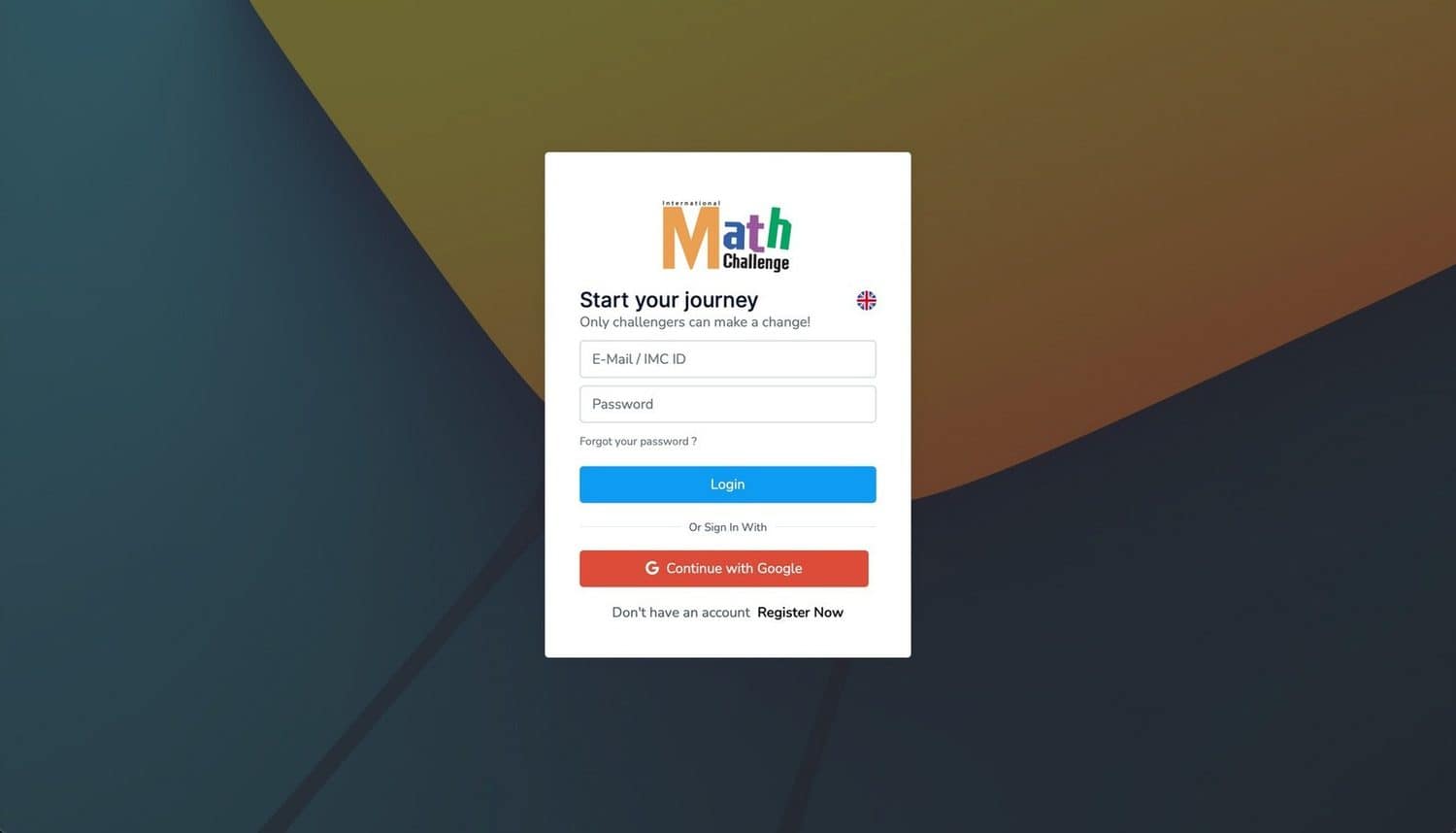
Go to register.mathchallenge.in.th and sign in with your email and password, or with Continue with Google.
Forgot your password? Use the Forgot your password? link on the login screen before exam day, not during it.
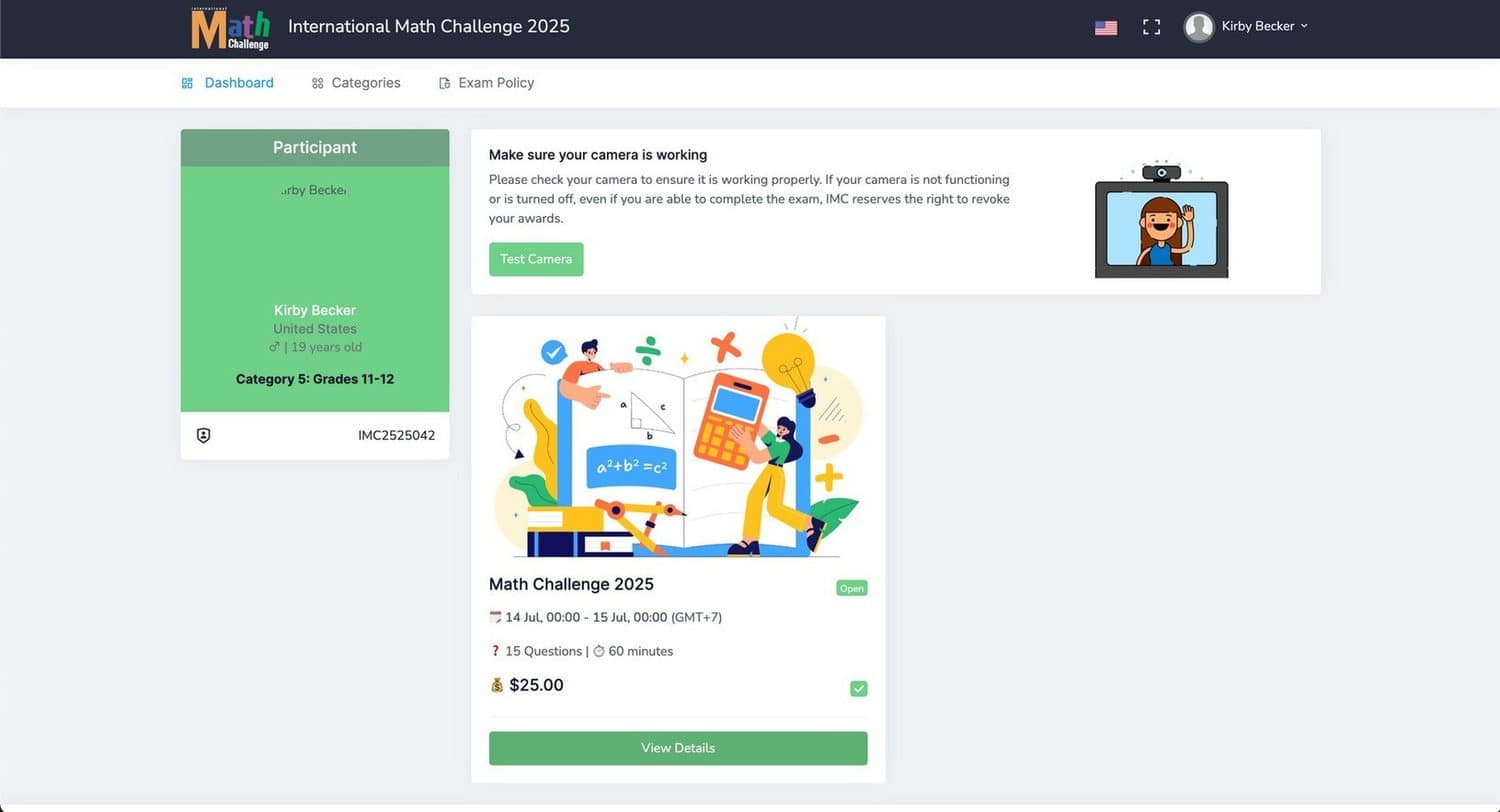
Test your camera
On your dashboard, click Test camera and make sure it works. Your webcam must stay on for the whole exam.
If your camera is off or not working, IMC reserves the right to revoke your awards, even if you finish the exam.
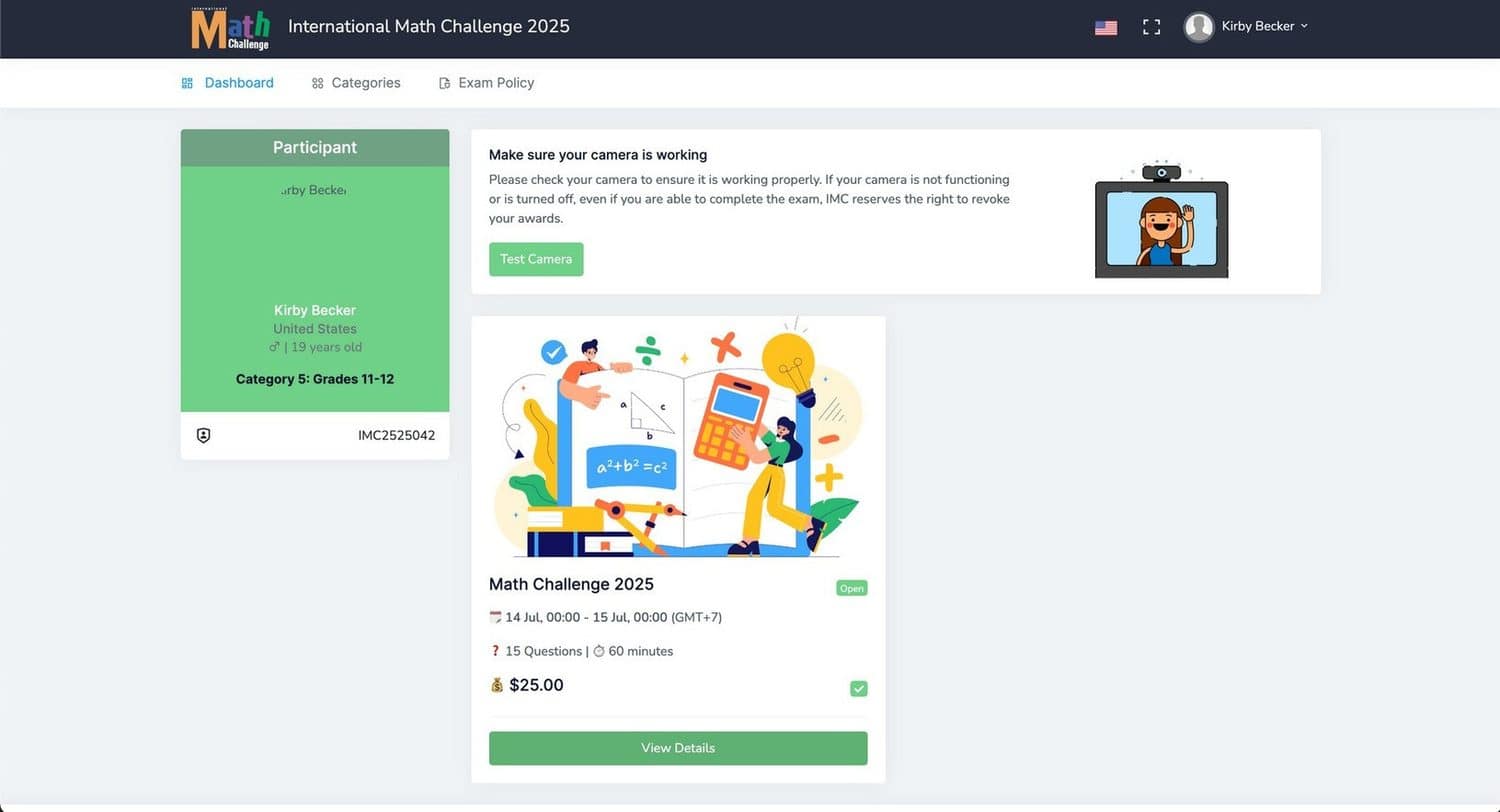
Open the exam details
Select View details to see everything about your exam: the dates, the number of questions, the time limit and your payment status.
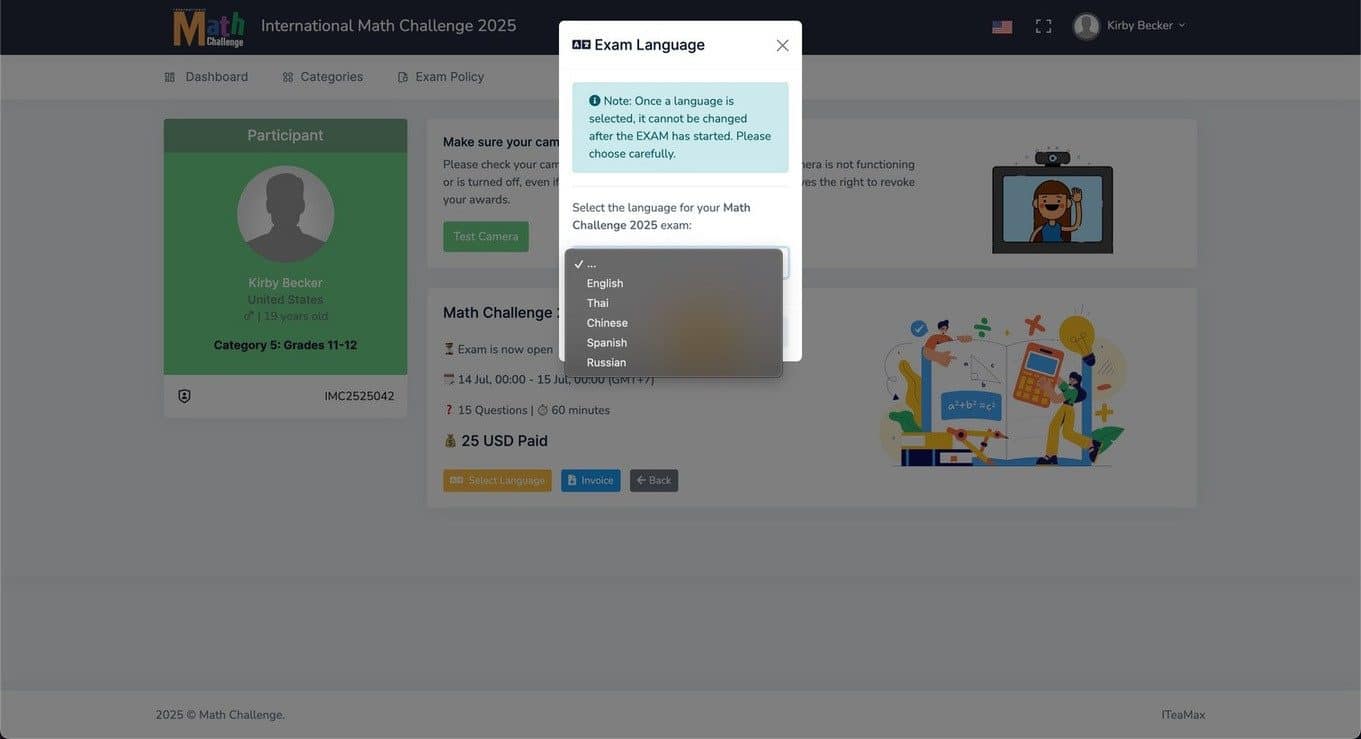
Choose your exam language
Click Select language and pick the language you are most comfortable with: English, Thai, Chinese or Russian.
Choose carefully. Once the exam has started, the language cannot be changed.
Start the exam
When the exam is open, press Join now and begin. The timer at the top right counts down, and your webcam records while you work.
Three wrong answers cancel one correct answer, but blank answers cost nothing. If a question is taking too long, leave it and come back.
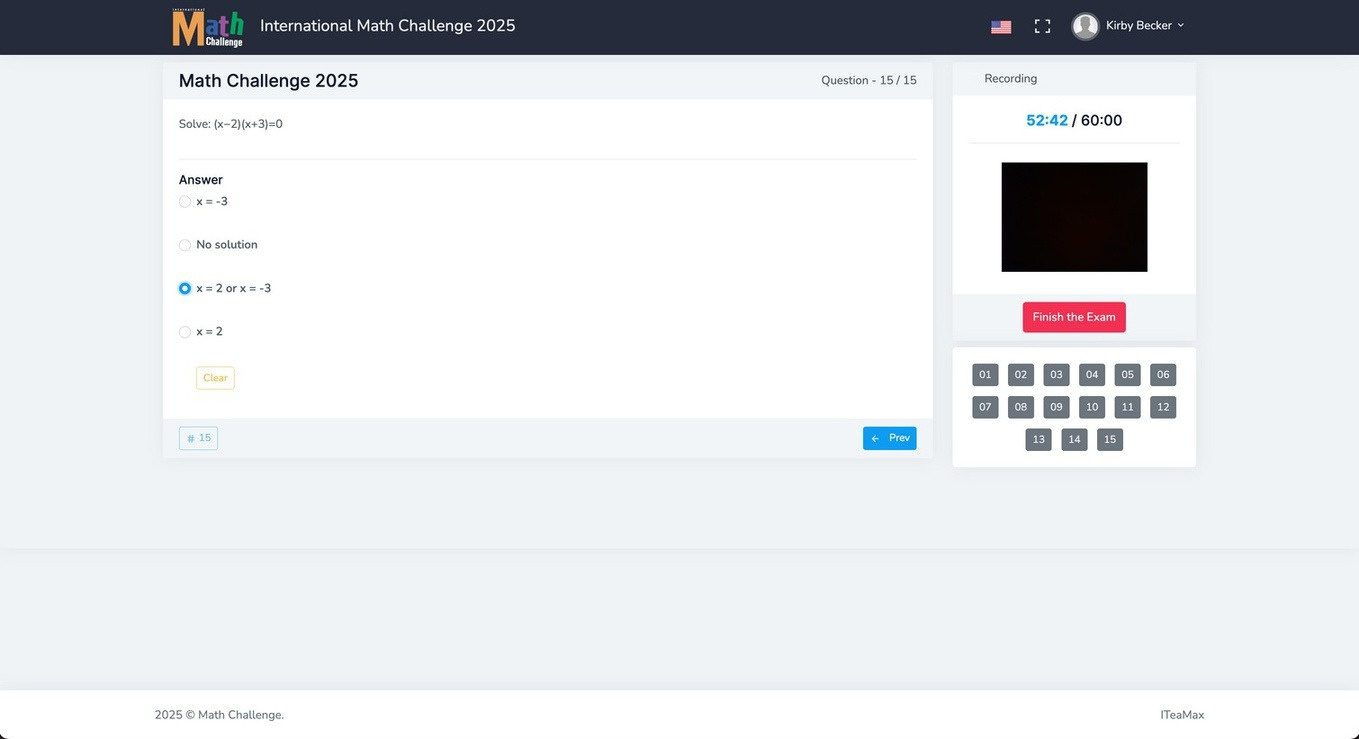
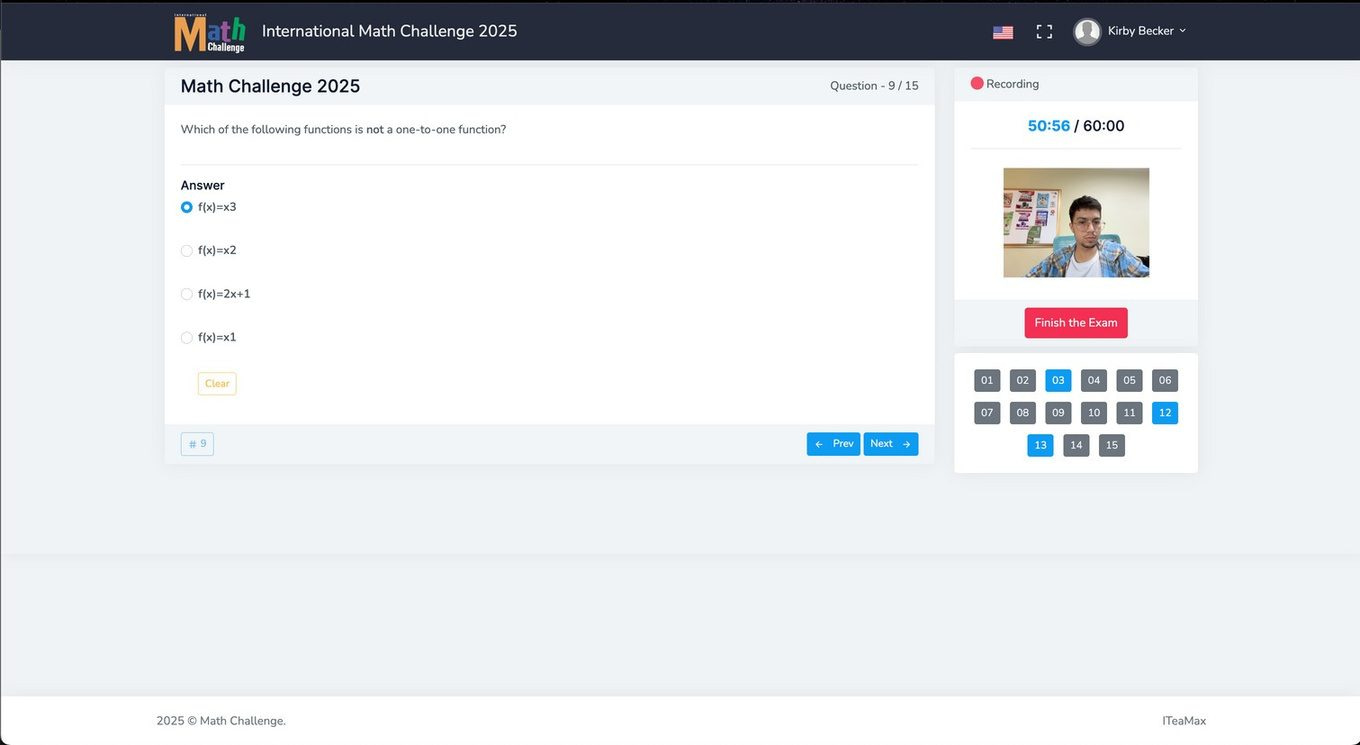
Keep track of your answers
Unanswered questions are highlighted in blue in the question number boxes. You can return to any of them until you submit.
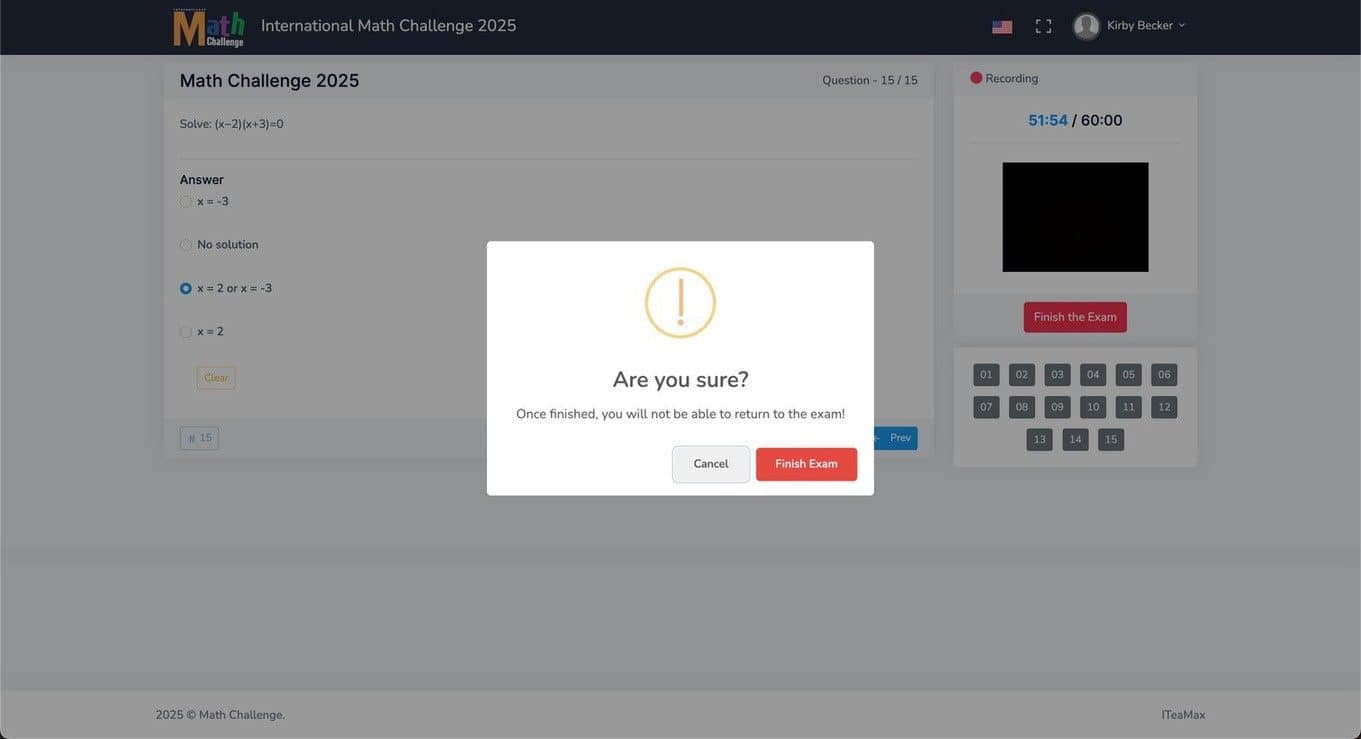
Finish the exam
When you have answered everything, click Finish the exam and confirm in the pop-up window.
Once you finish, you cannot return to the exam. Check your blue boxes first.
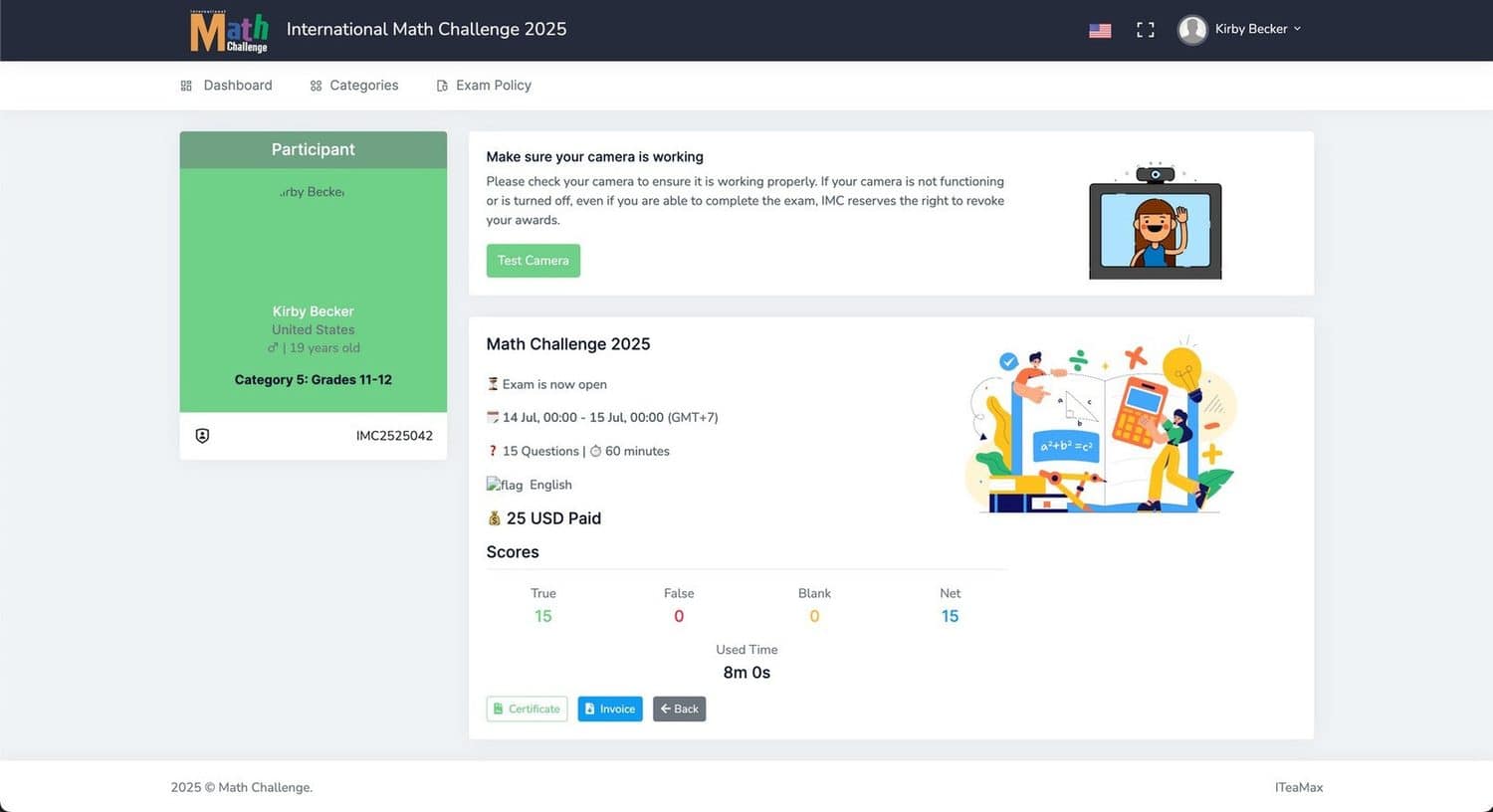
See your results
Your scores appear straight away: correct, wrong, blank, net score and the time you used. Click Certificate to download it as a PDF.
Good luck in your exam!
The IMC XVI Grand Online Round runs on 15–16 January 2027. Problems during the exam? Message us straight away.
Prefer a printable version? Download the PDF tutorial

