

HOW TO REGISTER
Eight short steps from creating your account to joining the exam. It takes about five minutes.
Open the registration site
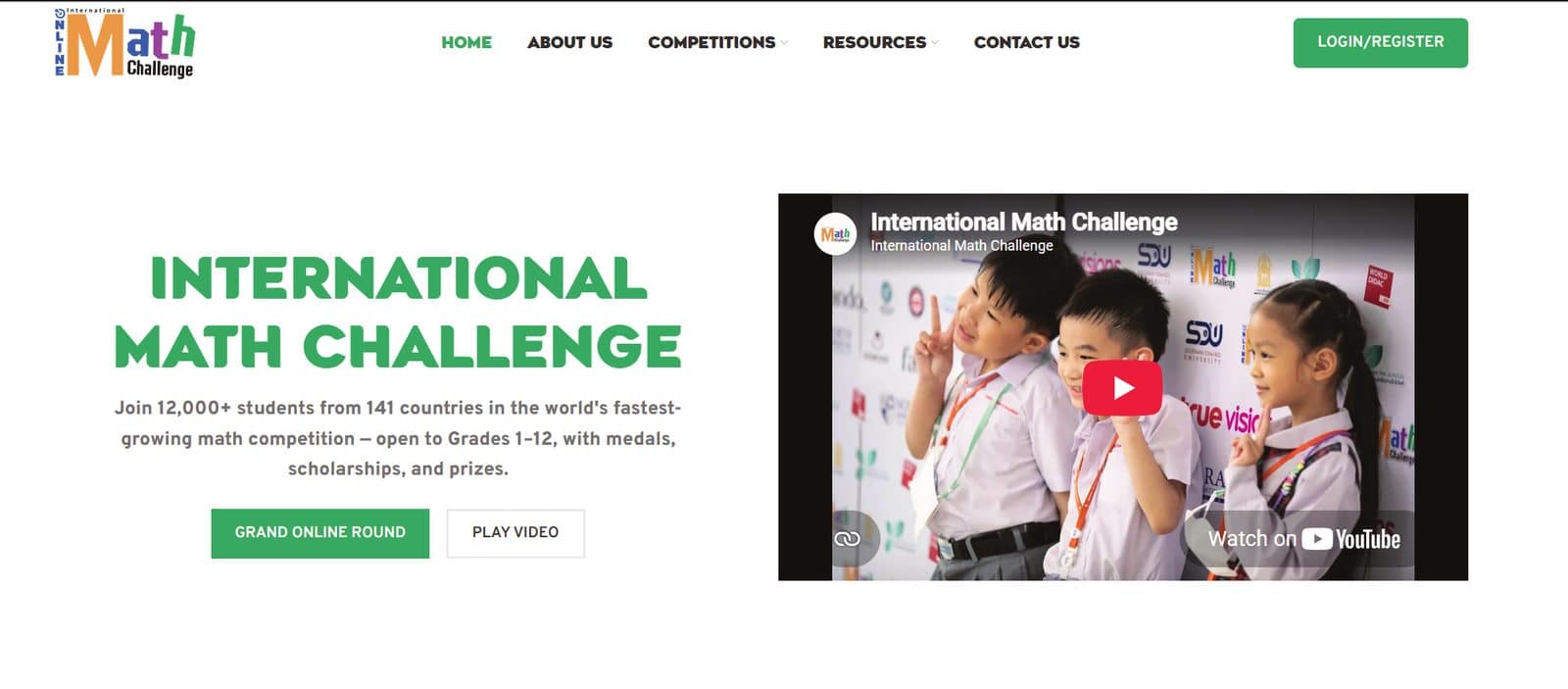
Go to register.mathchallenge.in.th and click the Login / Register button at the top right.
The registration site is separate from this website, so you need an account there even if you have visited us before.
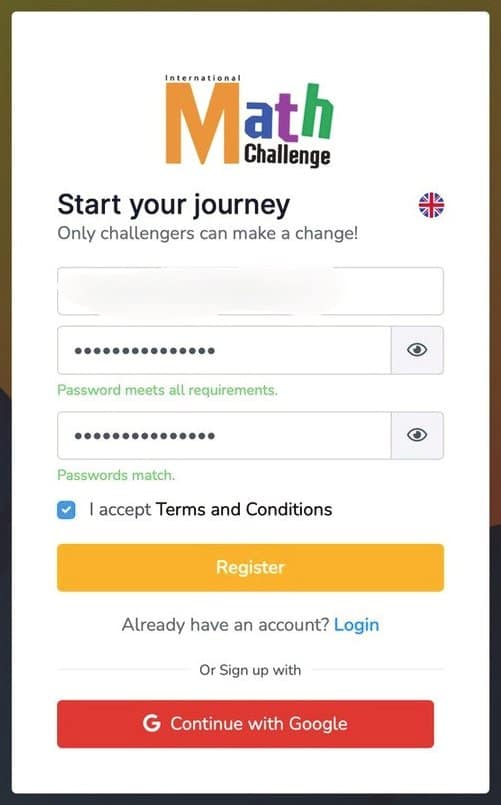
Create your account
Choose Continue with Google for the fastest sign-up, or click Register now to use an email address and password. Tick I accept Terms and Conditions before you continue.
Already have an account from a previous year? Just click Login and enter your email and password.
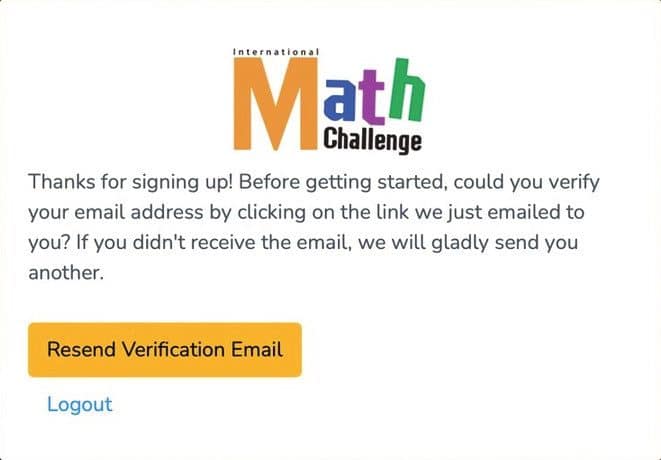
Check your inbox
After signing up you will see this screen. Leave it open and go to your email inbox. If the message has not arrived, click Resend verification email.
No email after a few minutes? Look in your spam or promotions folder for a message from register@mathchallenge.in.th.
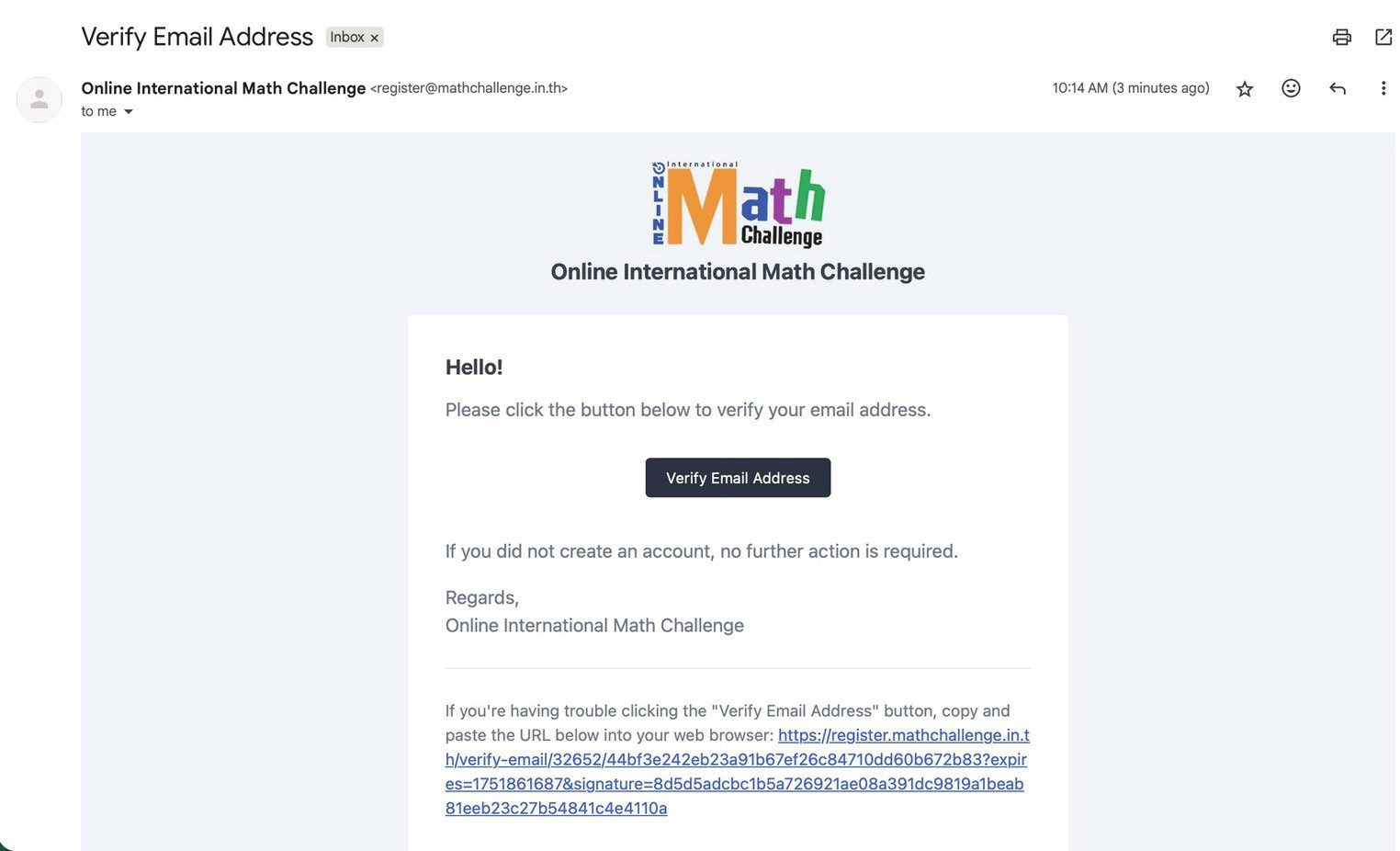
Verify your email address
Open the email from Online International Math Challenge and click the Verify Email Address button. If the button does not work, copy the link at the bottom of the email into your browser.
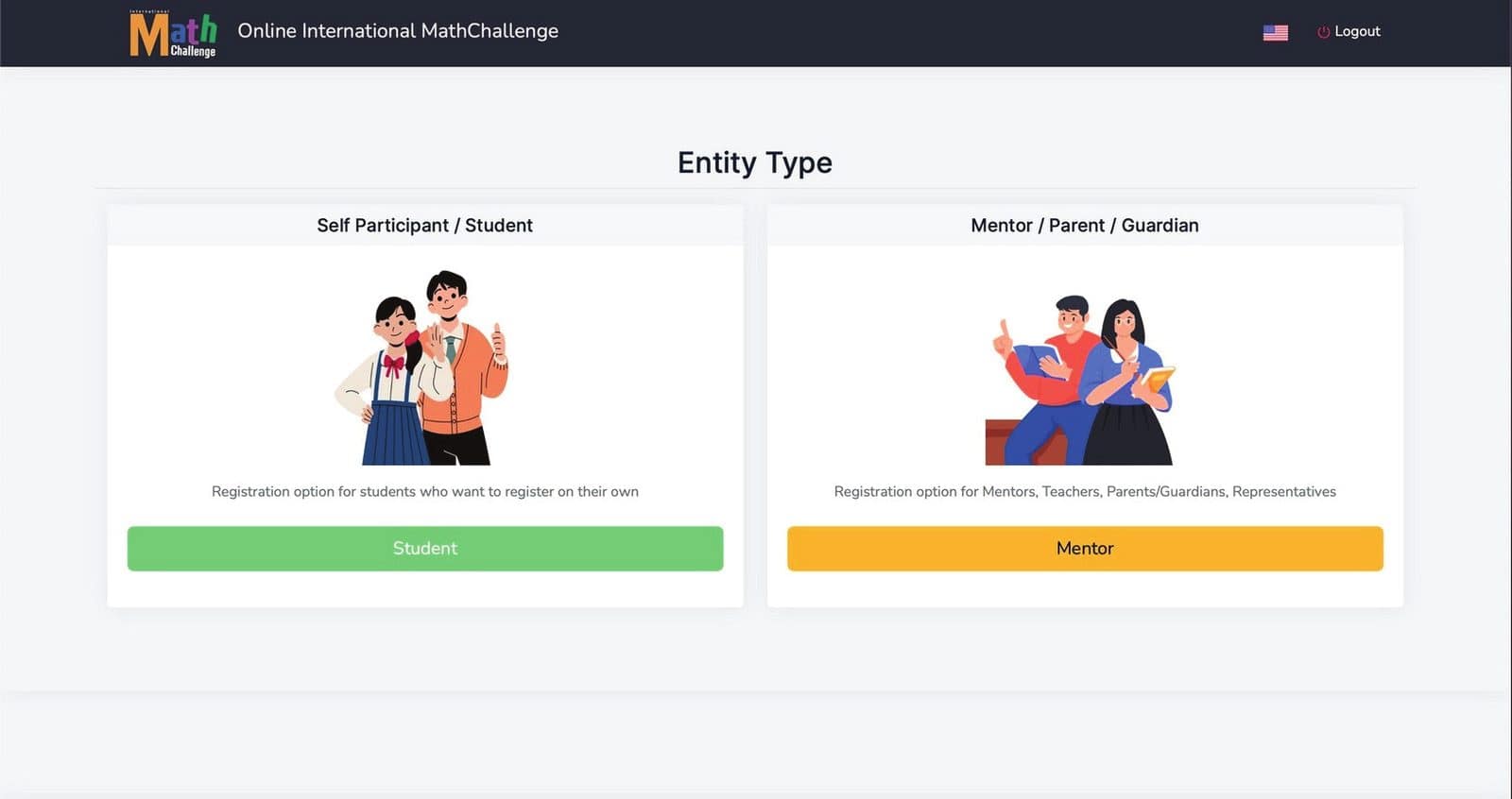
Choose “Student”
Students registering for themselves click the green Student button. Teachers, parents and school representatives who register others click Mentor instead.
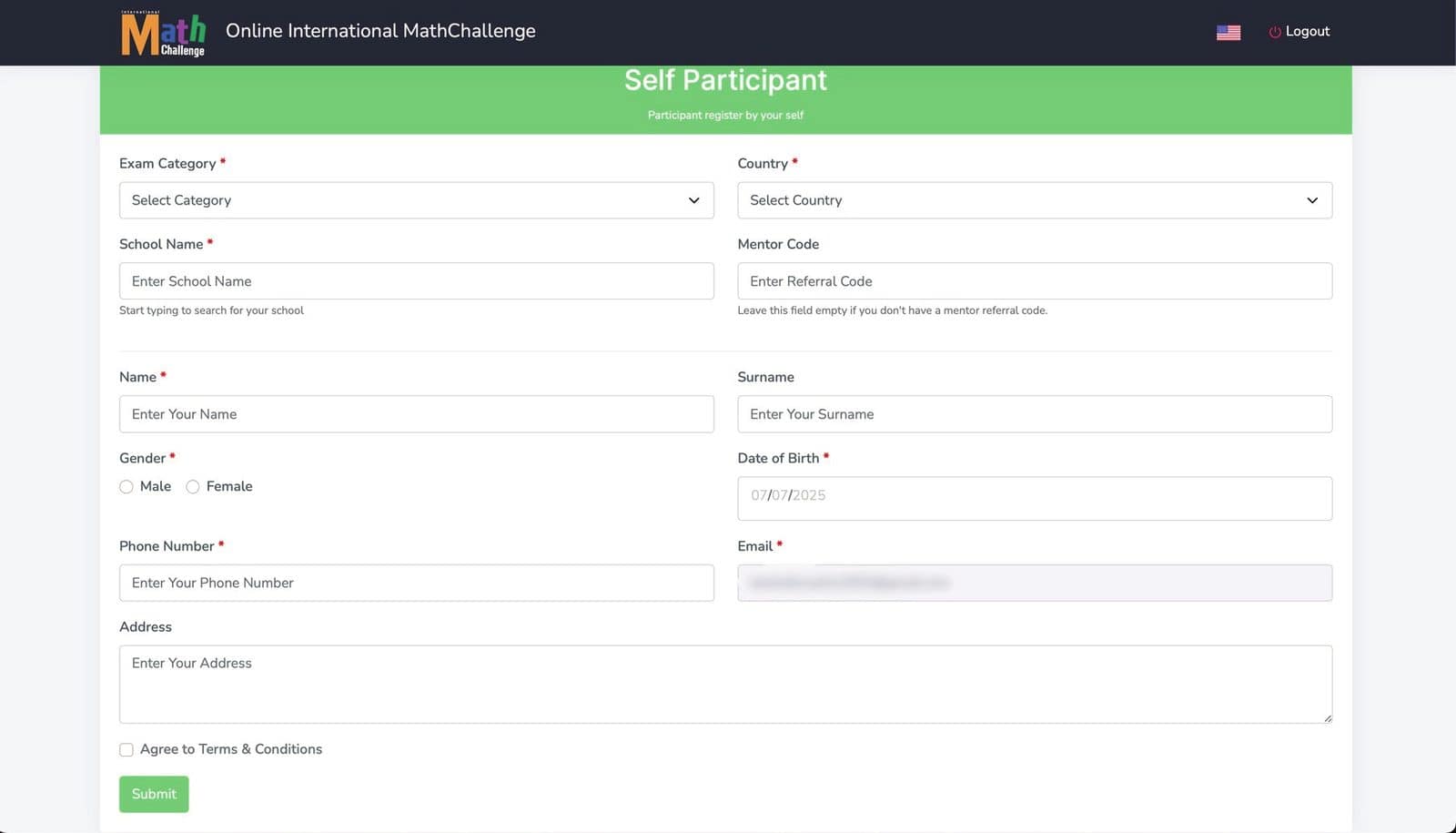
Fill in your details
Select your exam category and country, then enter your school, name, date of birth and phone number. Tick Agree to Terms & Conditions and click Submit.
Have a mentor, school or centre? Ask them for their mentor referral code and enter it in the Mentor Code field. Leave it empty if you do not have one.
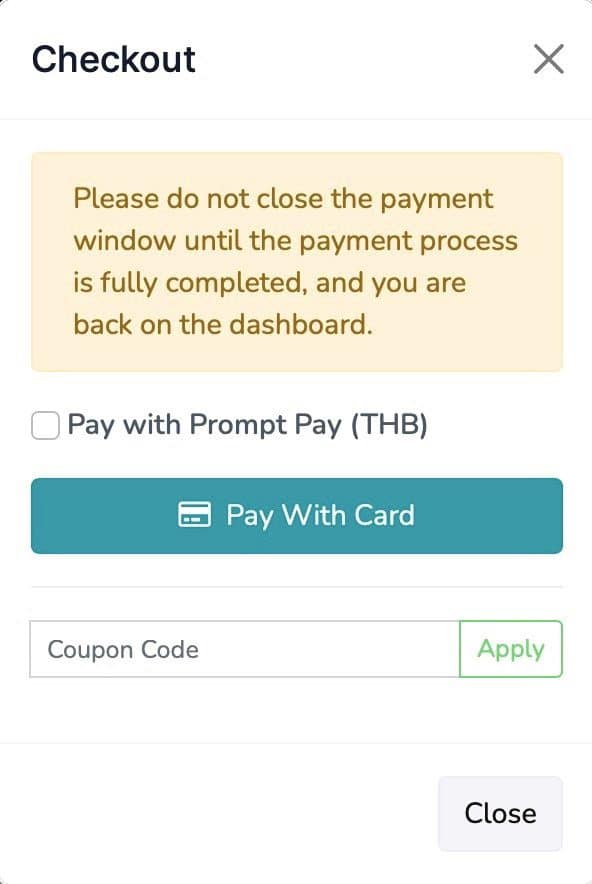
Pay the registration fee
Choose Pay with card or PromptPay (THB). If you have a coupon or discount code, enter it and press Apply before paying.
Do not close the payment window until you are back on the dashboard, or the payment may not be recorded.
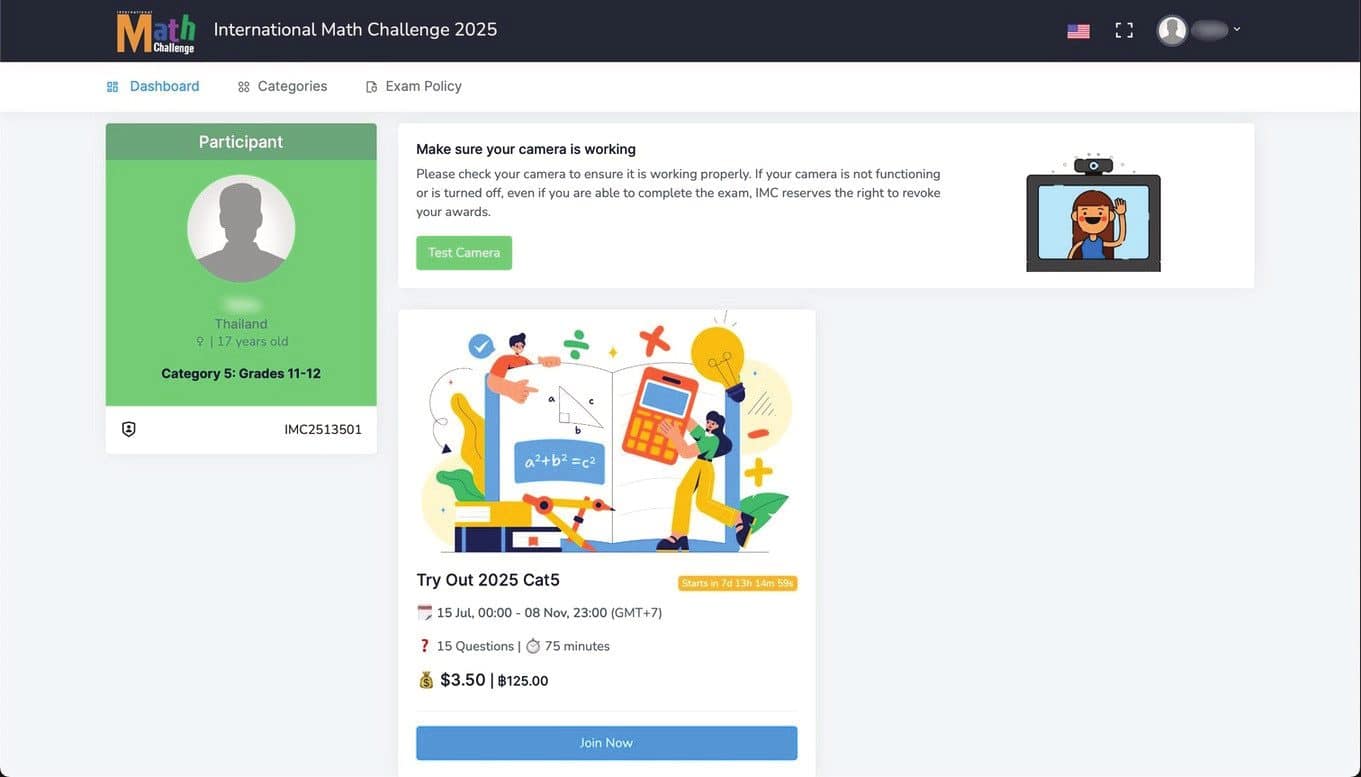
You are registered
Your dashboard shows your IMC ID, your category and your exam. Click Test camera to make sure your webcam works, then press Join now when the exam opens.
Ready to register?
Registration for the IMC XVI Grand Online Round is open now.
Prefer a printable version? Download the PDF tutorial

