

HOW TO REGISTER AS A MENTOR
For teachers, parents, guardians, centres and school representatives who enrol students in the International Math Challenge.
Two ways to register your students
Both routes keep every participant visible on your mentor dashboard. Pick whichever suits your group.
You register and pay for them
Gather each student’s details and fee using whatever method you prefer, then register them in the IMC system under your mentor account and complete the payments yourself with the fees you collected.
They register themselves with your code
If your participants will handle their own registration and payment, complete your registration first and notify IMC of your registration email. IMC then activates the representative option on your account and your Mentor Referral Code appears on your dashboard. Give that code to your students so you can track everyone who registers through you.
Open the registration site
Go to register.mathchallenge.in.th and click the Login / Register button at the top right.
The registration site is separate from this website, so you need an account there even if you have visited us before.

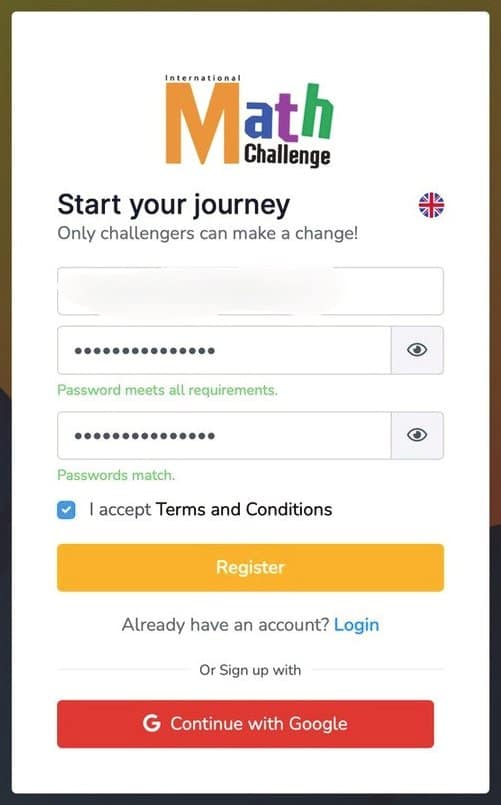
Create your account
Choose Continue with Google for the fastest sign-up, or click Register now to use an email address and password. Tick I accept Terms and Conditions before you continue.
Already have an account from a previous year? Just click Login and enter your email and password.
Check your inbox
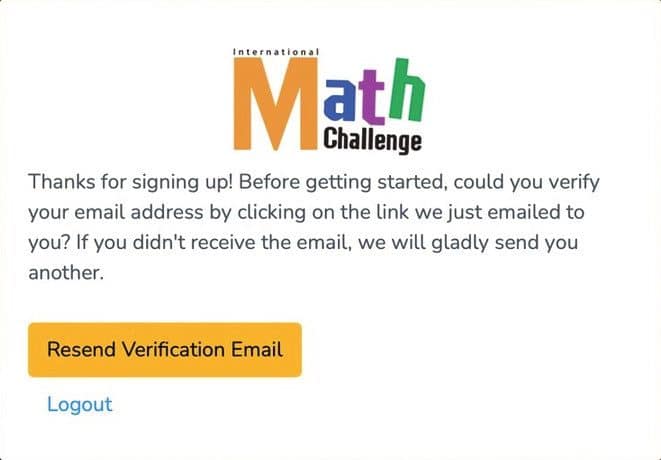
After signing up you will see this screen. Leave it open and go to your email inbox. If the message has not arrived, click Resend verification email.
No email after a few minutes? Look in your spam or promotions folder for a message from register@mathchallenge.in.th.
Verify your email address
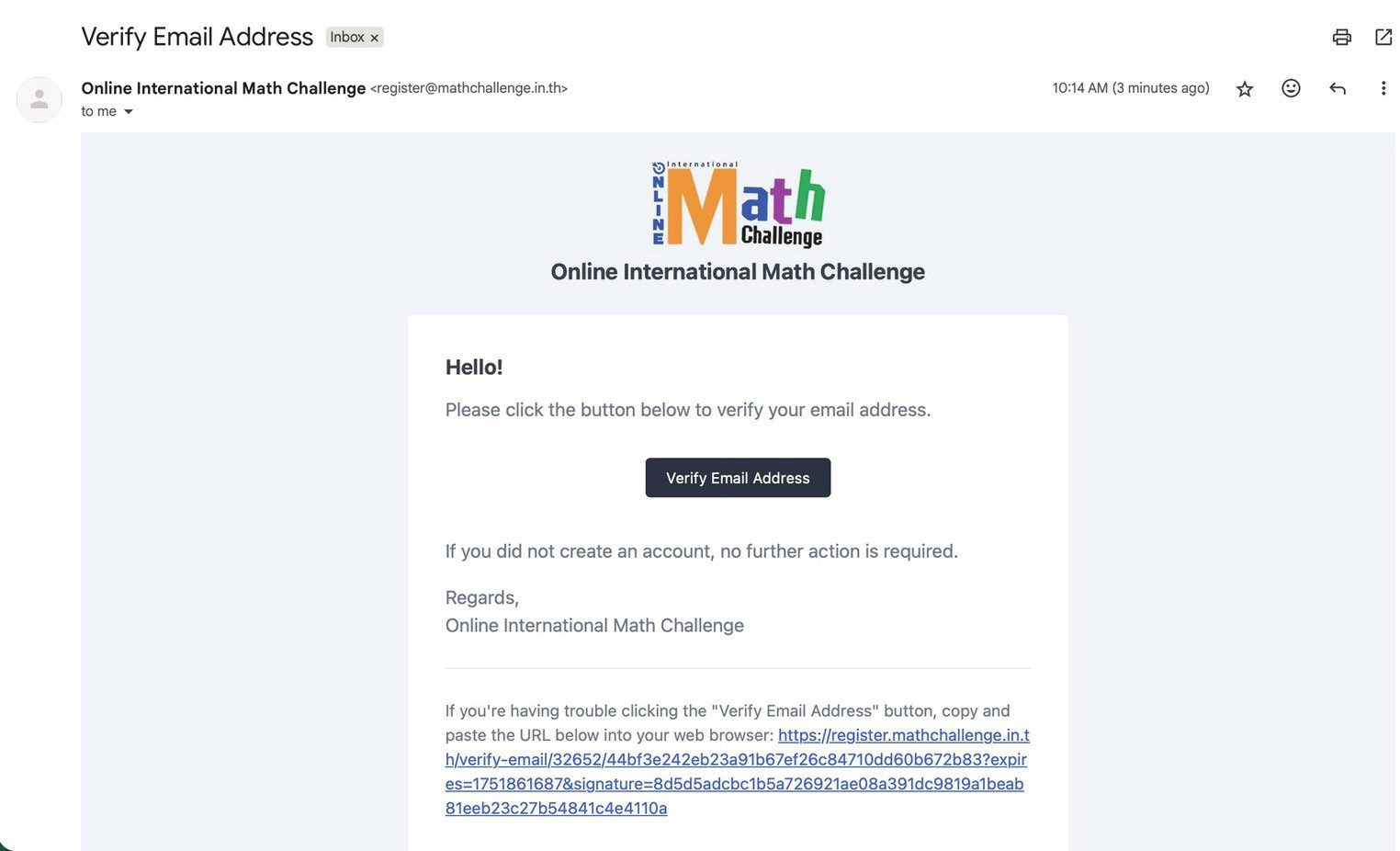
Open the email from Online International Math Challenge and click the Verify Email Address button. If the button does not work, copy the link at the bottom of the email into your browser.
Choose “Mentor”
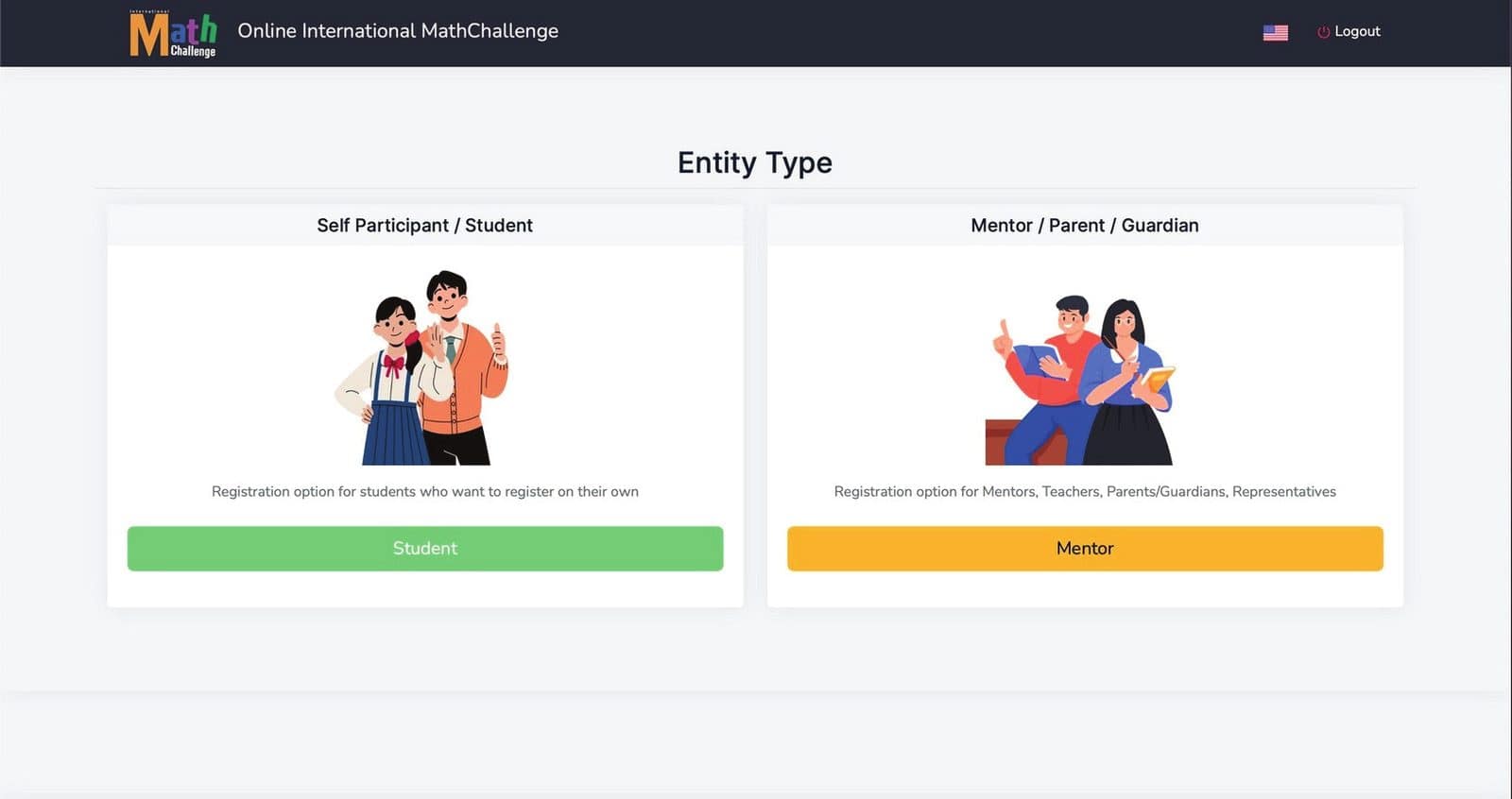
Once you click Verify you are taken to the user type page. Teachers, parents, guardians and representatives click the yellow Mentor button on the right — not the green Student button.
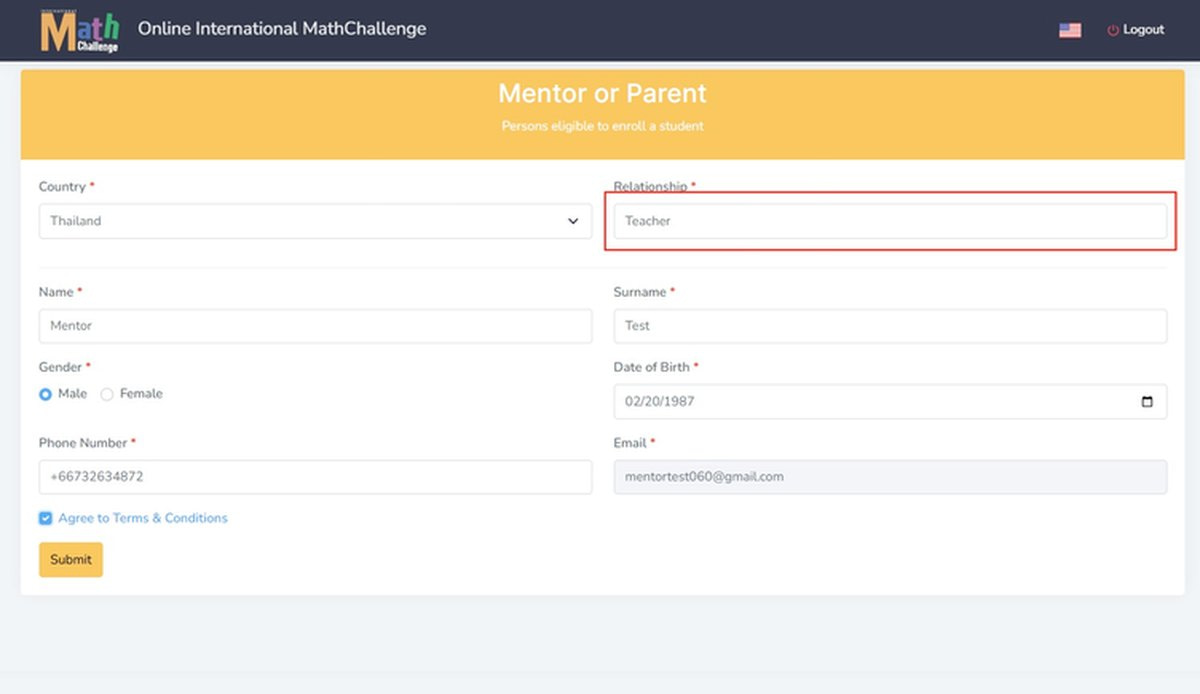
Fill in your mentor details
Complete every field correctly: country, name, surname, gender, date of birth, phone number and email. Tick Agree to Terms & Conditions and click Submit.
In the Relationship field, enter your relationship to the participants. Pick one of the suggestions or type your own, such as Teacher.
Add your students
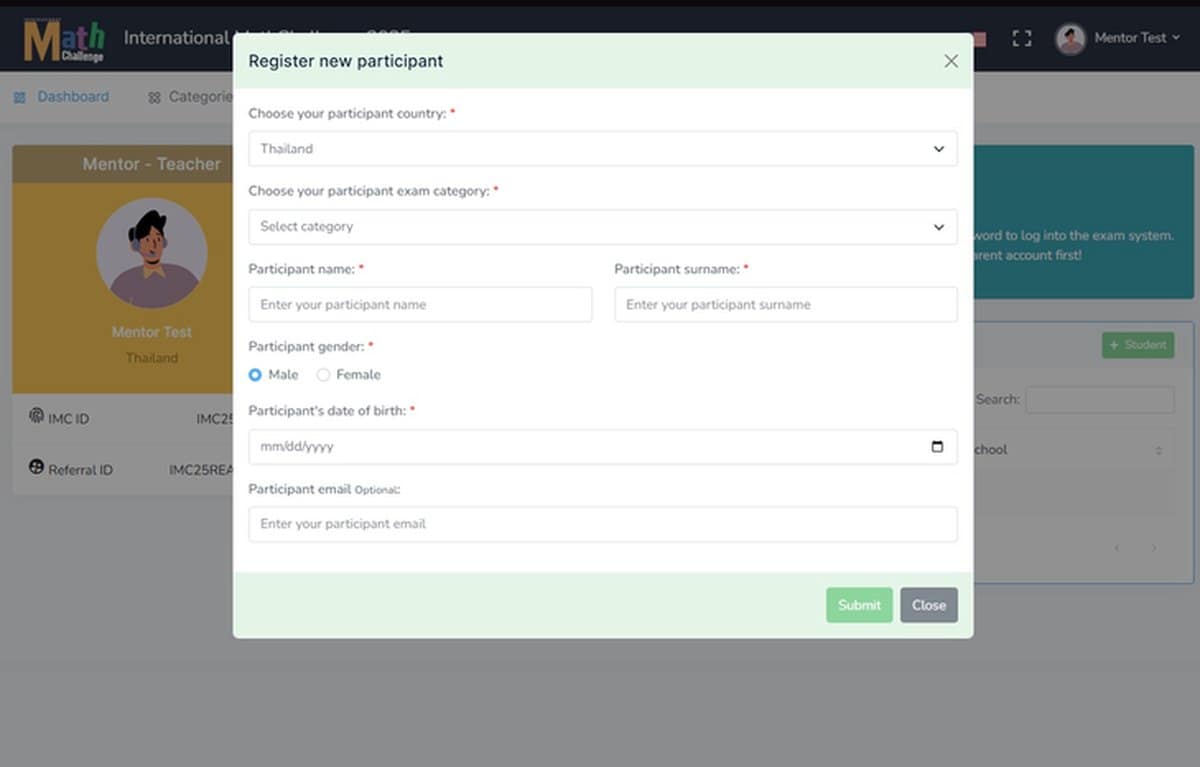
You land on your mentor dashboard. Click + Student above the student table, then choose the participant’s country and exam category and enter their name, surname, gender and date of birth. The participant email is optional.
Click Submit and repeat for each student. They appear in your table straight away.
Pay for their exams
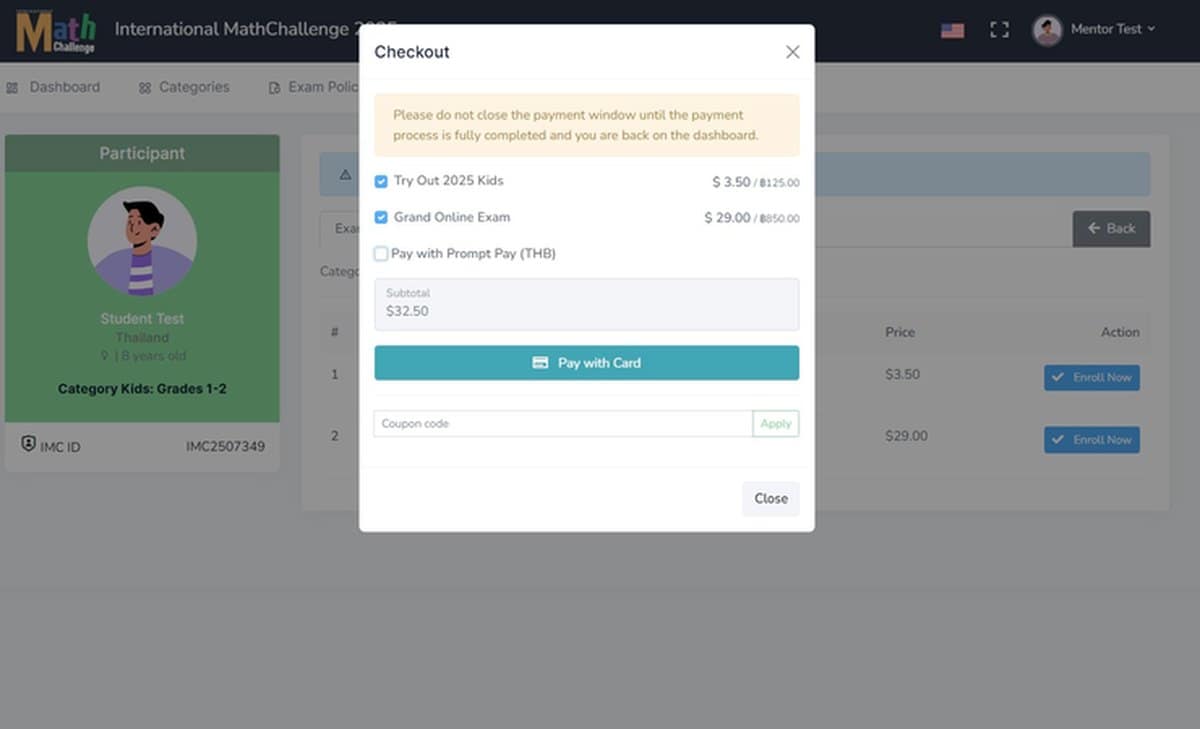
Click a student’s name, open the Exam tab and enrol them. Tick the exams in the checkout box, then choose Pay with card or PromptPay (THB). If you have a coupon or discount code, enter it and press Apply before paying.
Do not close the payment window until you are back on the dashboard, or the payment may not be recorded. If that happens, contact register@mathchallenge.in.th.
Hand over the exam logins
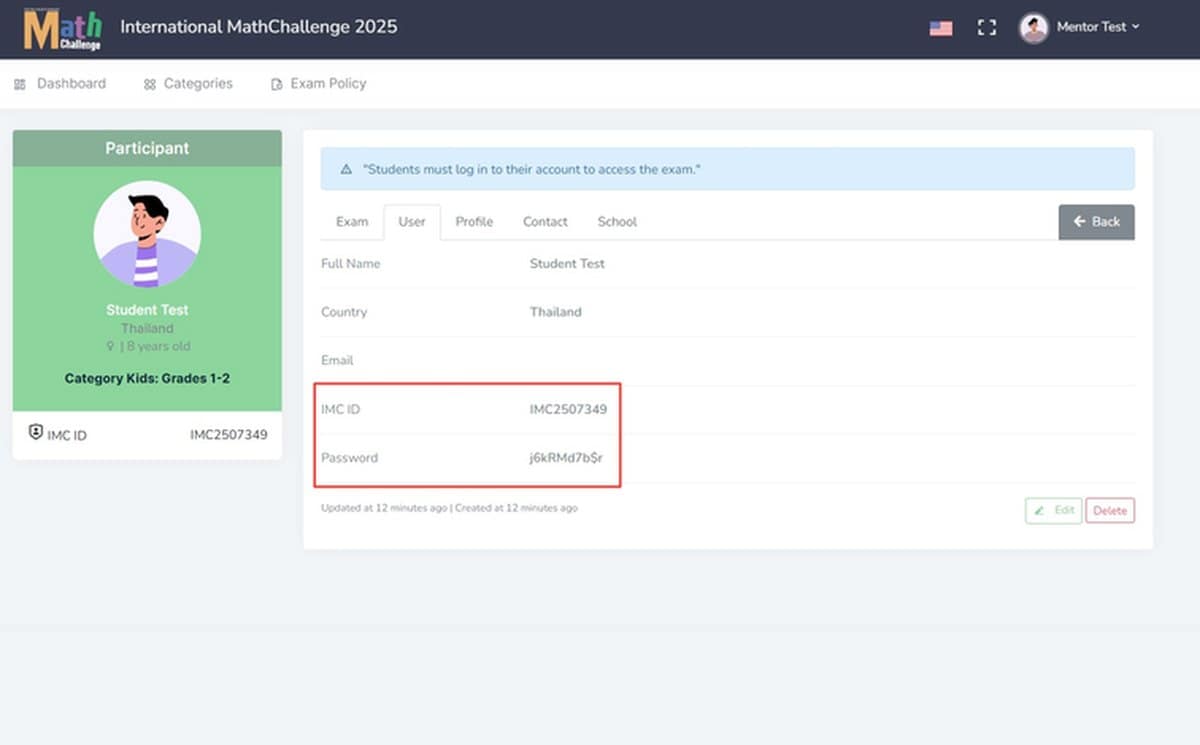
Click the student’s name again and open the Exam Card menu. Take the IMC ID and password shown there and give them to your student. They use these to log in and sit the examination.
If your student will use the same computer you registered on, log out of your mentor account first.
Also available to mentors
Three tools on your dashboard that make running a larger group easier.
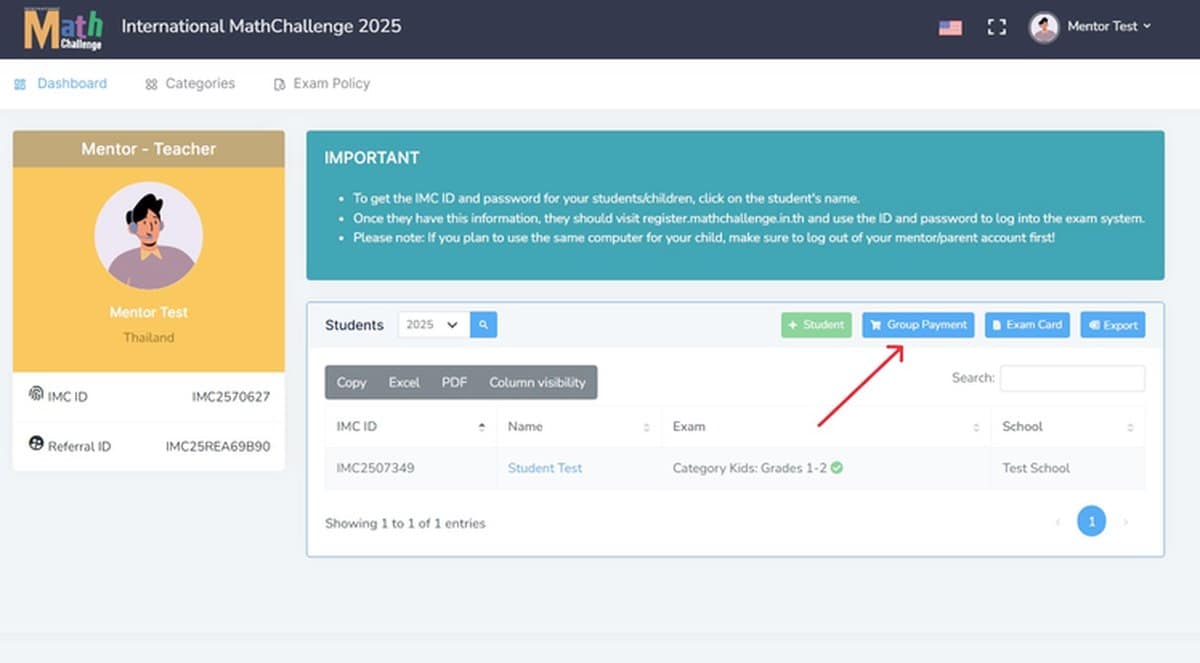
Group payment
With more than one student, use Group Payment on the dashboard and settle every exam in a single checkout instead of paying student by student.
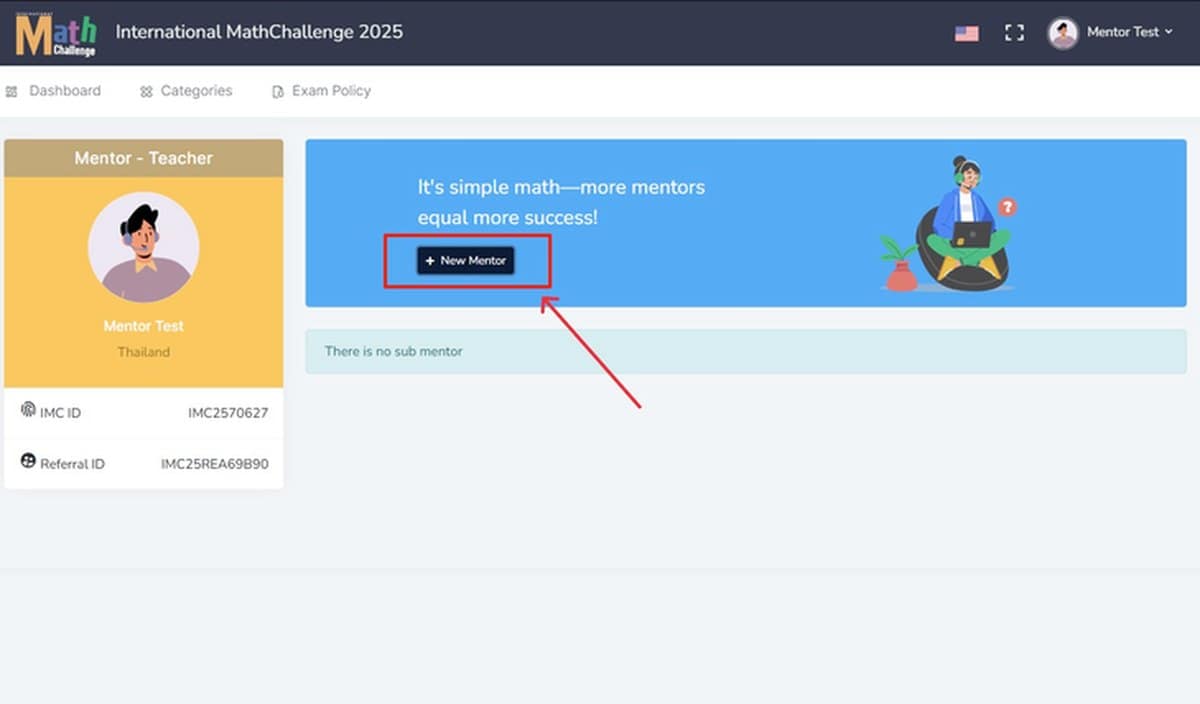
Sub-mentors
Add extra mentors under your account from the Sub Mentor menu, and IMC will award them mentorship certificates. Give them the username and password generated in the system, and they verify through their own email.
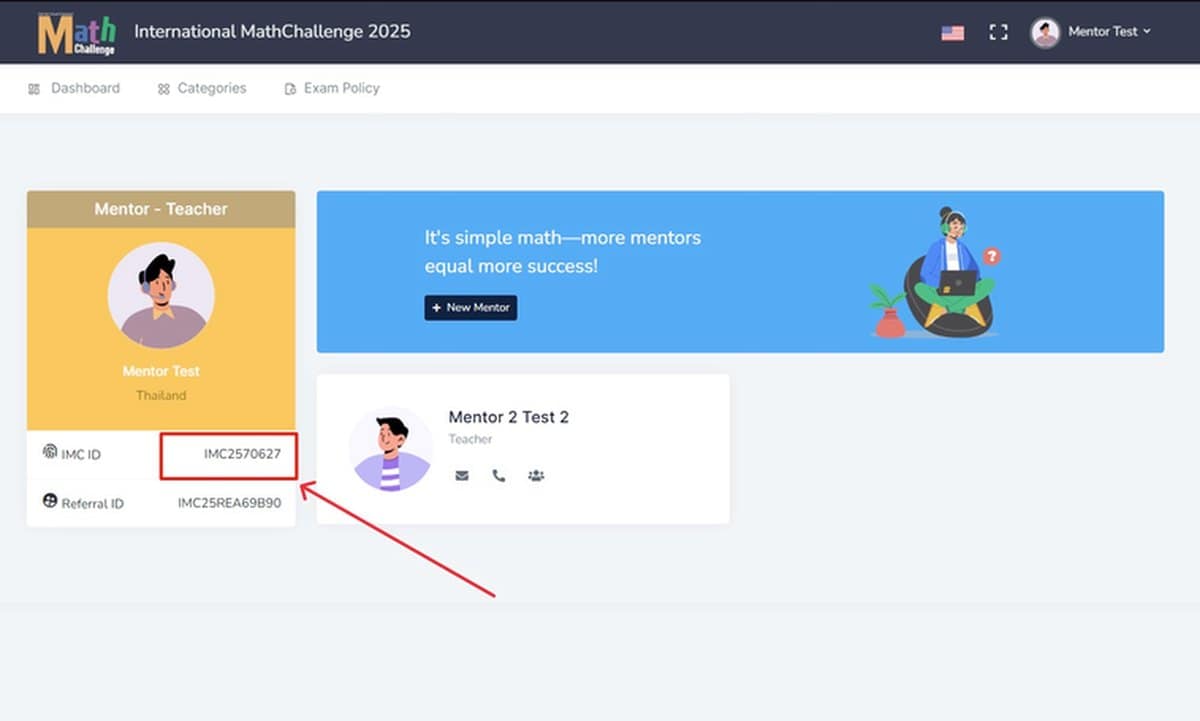
Mentor referral code
Centres and mentors can share a referral code so students who register on their own still appear under your account. Find your IMC ID and Referral ID in the left panel of your dashboard.
Ready to enrol your students?
Registration for the IMC XVI Grand Online Round is open now.
Registering yourself instead? See the student guide

